If you have ever tried to rank a web hosting company on the first page of Google, you already know the brutal reality: the technical SEO landscape is unforgiving. Search engines demand fast load times, flawless mobile responsiveness, and highly structured data.
For years, hosting providers have faced a massive structural disadvantage. While front-end marketing sites (usually built on WordPress) are easy to optimize for search engines, the backend billing portals—where your actual products, pricing tables, and domain search tools live—are often SEO black holes. Platforms like Blesta and WHMCS were built for billing automation, not for passing Google’s Core Web Vitals or generating dynamic XML sitemaps.
To get around this, developers historically resorted to the “hybrid stack”—running WordPress on the main domain and hiding the billing software on a subdomain.
But what if your billing theme was engineered so well that you didn’t need a hybrid setup at all? What if your Blesta installation could actively drive organic traffic, capture rich snippets in search results, and handle complex meta routing right out of the box?
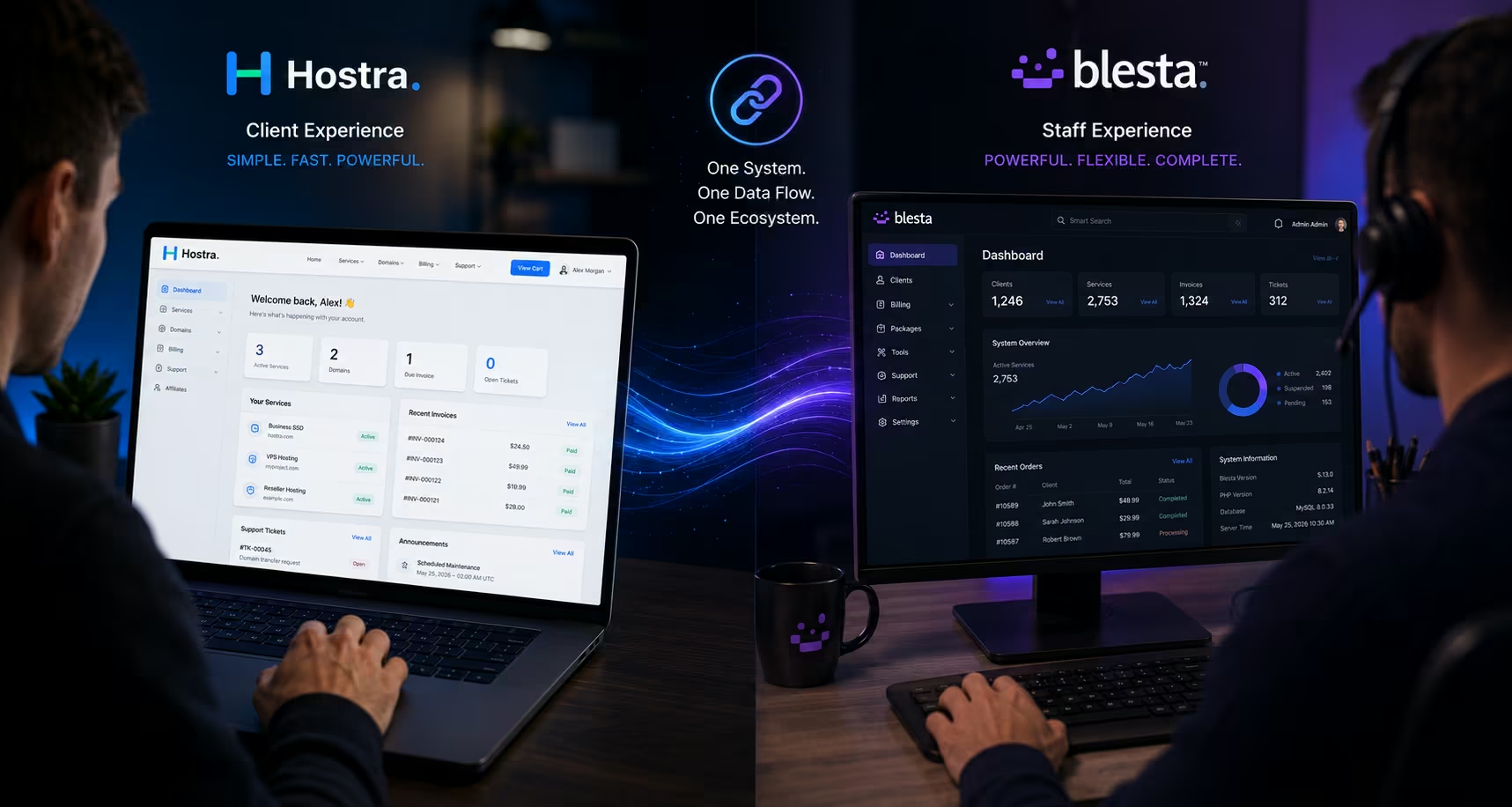
This was the foundational philosophy behind the Hostra theme. In this guide, we are going to break down how Hostra automates the most difficult aspects of technical SEO, and exactly how you can map custom SEO slugs and meta data using Blesta’s native CMS Manager.
The Technical SEO Burden (And How Hostra Eliminates It)
Before we look at customizing your page routes, we need to talk about what is happening under the hood. Technical SEO is not just about sprinkling keywords into a paragraph; it is about how you communicate your site’s architecture to Google’s crawling bots.
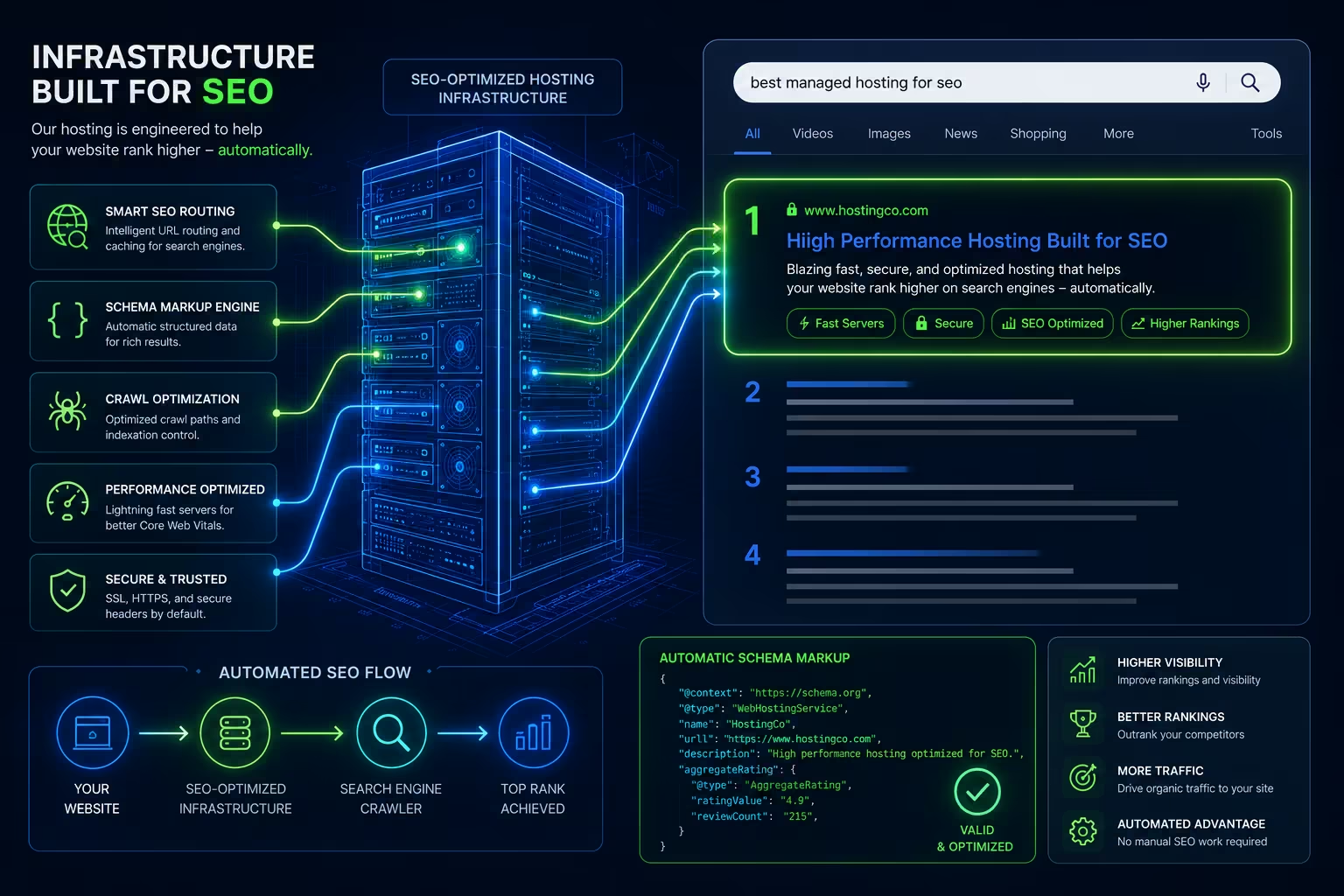
When you install Hostra, a massive suite of technical SEO automation activates in the background, requiring absolutely zero manual coding on your part.
1. Automated Canonical URLs
In the hosting industry, URLs often get appended with complex tracking parameters, currency toggles, or affiliate ID tags (e.g., [yoursite.com/shared-hosting?currency=USD&aff=123](https://yoursite.com/shared-hosting?currency=USD&aff=123)). If you don’t handle this properly, Google will index every single variation of that URL, penalizing your site for “duplicate content.” Hostra automatically generates strict Canonical Tags (<link rel="canonical" href="..." />) for every page, explicitly telling search engines which version of the URL is the master copy. This consolidates your link equity and protects your rankings.
2. JSON-LD and FAQ Schema
Have you ever Googled a question and noticed that some websites get massive, expandable FAQ boxes right on the search results page? That is achieved using structured data (Schema markup). Whenever you use the Hostra Theme Settings to add Frequently Asked Questions to your product pages, the theme dynamically wraps that content in perfect JSON-LD FAQ Schema. This drastically increases your chances of capturing “Rich Results” in Google, pushing your competitors further down the page and increasing your Click-Through Rate (CTR).
3. Open Graph & Twitter Cards
When a client shares your hosting page on X (formerly Twitter), LinkedIn, or WhatsApp, you want it to look like a premium software product—not a broken link with a missing image. Hostra automatically injects Open Graph and Twitter Card meta tags into the <head> of your site, pulling the default social share image you define in the theme settings.
Customizing Your URL Structure
Out of the box, Hostra provides perfectly optimized default pages for your core services: Shared Hosting, VPS, WordPress, Reseller, Domains, and Contact.
However, your infrastructure startup might target a highly specific niche. Perhaps you don’t sell “Reseller Hosting”—perhaps you sell “AI Node Hosting” or “Managed Game Servers.” You need your URL slugs to reflect your actual product, because keywords in the URL string are a highly weighted ranking factor.
Hostra allows you to rename any default page and create custom slugs effortlessly.
How to rename a page slug:
Navigate to Hostra Theme Settings > Global Identity > Header & Logo Config.
Locate the page you want to modify (e.g., Reseller Hosting).
Change the Page Name to your desired title (e.g., “AI Hosting”).
Change the Slug field to your SEO-optimized route (e.g.,
/ai-hosting).Click Save.
This instantly updates your front-end navigation menu. However, this is only step one. To make the page actually load without hitting a 404 error, we need to bridge the theme with Blesta’s core router.
The Critical Bridge: Using the Blesta CMS Manager
Blesta operates on a strict MVC (Model-View-Controller) architecture. When a user types [yoursite.com/ai-hosting](https://yoursite.com/ai-hosting) into their browser, the Blesta core looks for a matching controller. If it doesn’t find one, it throws a 404 Page Not Found error.
To tell Blesta how to route your new Hostra slugs, we use the native Blesta CMS Manager plugin.
Mapping the URI in the CMS Manager
Here’s how to register your custom slugs.
Navigate to Tools > CMS in the Blesta admin menu.
Click the + (Add) icon to create a new page route.
In the URI field, enter the exact slug you created in the Hostra Theme Settings (e.g.,
/ai-hosting).Enter your Page Title.
The Content Rule: If you are mapping a default Hostra template (like the Reseller page you renamed), leave the content area completely blank. Hostra’s engine will intercept the route and dynamically inject the highly styled template automatically. If you created a brand new custom page from scratch in the settings, you can paste standard HTML into this content box.
Click Save.
By matching the slug in the Hostra settings to the URI in the CMS Manager, you have successfully created a flawlessly routed, SEO-friendly page right inside your billing portal.
Mastering Meta Data (Titles and Descriptions)
The final pillar of on-page optimization is your Meta Title and Meta Description. This is the text that actually appears as the blue link and gray snippet in Google search results. It is your ultimate sales pitch to the searcher.
Hostra centralizes all of this inside the plugin dashboard so you never have to touch a .pdt template file.
Navigate to Hostra Theme Settings > Global Identity > SEO & Analytics.
Scroll down to the Page Meta Titles and Descriptions section.
Enter compelling, keyword-rich titles (usually around 50-60 characters) and descriptions (150-160 characters) for each page.
⚠️ The Renaming “Gotcha”
There is one critical operational detail to remember here regarding how Hostra stores template data.
If you renamed a core service page—for example, changing the “Reseller Hosting” page to “AI Hosting”—the underlying structural template is still the Reseller template. Therefore, when you are in the SEO & Analytics panel, you must enter your “AI Hosting” meta title and meta description into the field labeled Reseller Hosting.
The label in the admin panel reflects the structural template, but the front-end will perfectly render your custom AI-focused meta data to search engines.
If you added entirely new pages via the Custom Menu Expansion tool, you will find dedicated fields for them under the Custom Pages Meta Data section right below.
Dynamic Sitemaps and Indexing
Once you have meticulously configured your slugs, mapped your CMS URIs, and written high-converting meta descriptions, Google needs to know about it.
Instead of forcing you to use third-party XML generators, Hostra includes a dynamic sitemap engine. Every time you enable a new page, hide a section, or create a custom slug, Hostra updates your sitemap.xml instantly.
At the bottom of the SEO & Analytics panel, Hostra provides your exact sitemap URL. Simply copy this link, log into your Google Search Console account, and submit it. Google’s crawlers will now seamlessly parse your Blesta installation, read the JSON-LD schema, respect your canonical tags, and start indexing your hosting company as a high-authority digital property.
Technical SEO in the hosting industry used to require a massive hybrid architecture and endless plugin management. With Hostra, your billing portal is finally built to rank.